Multi-Platform Docker Builds from an M1 Mac Using Your Synology NAS as a Remote Builder
Key Takeaways
- Synology ships Docker Engine 24.0.2 (API v1.43) and you cannot upgrade it independently — this creates a hard version mismatch with modern Docker clients.
- The
docker-containerbuildx driver requires API compatibility at both ends; theremotedriver bypasses this by talking directly to a BuildKit daemon over TCP.- Running BuildKit as a standalone container on the NAS lets you do multi-platform builds without touching the system Docker daemon at all.
Why This Post Exists
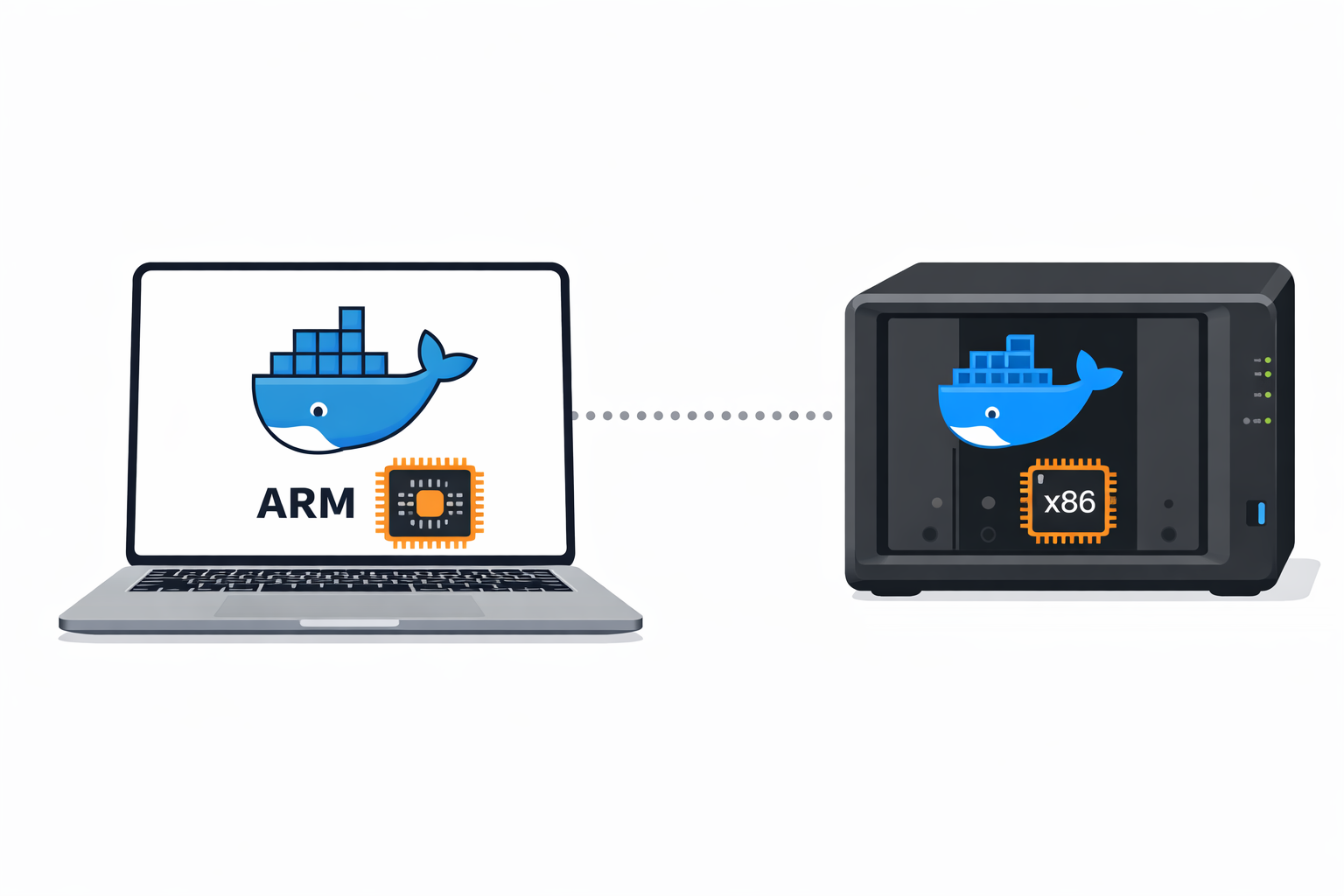
I needed to build a Docker container that would run on my Synology NAS — an x86_64 box — from my M1 MacBook Pro. The standard approach is docker buildx with a remote builder node over SSH: your Mac handles the ARM build natively, and the remote machine handles x86. There's a good guide on totheroot.io that walks through this setup.
I hit three problems the guide didn't cover, all specific to Synology's flavour of Docker. Each one cost me time, and none of them had obvious error messages. Here's what happened and how I fixed it.
Problem 1: SSH Key Copy Fails — No Home Directories
The first step in setting up a remote builder is copying your SSH public key to the NAS so that docker buildx can SSH in without a password prompt. The standard command:
ssh-copy-id youradmin@your-nas.localThis failed. Not with a permissions error — with a "no such file or directory" for the .ssh directory on the remote side. Synology doesn't enable user home directories by default. Without a home directory, there's nowhere for authorized_keys to live.
The fix: In DSM, go to Control Panel → User & Group → Advanced → User Home and tick Enable user home service. This creates /var/services/homes/<username> for each user. Once that's enabled, ssh-copy-id works as expected.
This isn't a Docker problem, but it's worth calling out because the error gives you nothing to work with. You get a generic failure, and unless you already know that Synology home directories are opt-in, you'll waste time looking in the wrong place.
Problem 2: Non-Standard SSH Port
My NAS runs SSH on a non-standard port — not 22. Every guide assumes port 22, and docker buildx create doesn't have an obvious --port flag for SSH connections.
The fix is straightforward once you know the syntax. The SSH URI in the buildx command accepts a port:
ssh://youradmin@your-nas.local:2222And for ssh-copy-id and any other SSH commands during setup:
ssh-copy-id -p 2222 youradmin@your-nas.localIf you're also using SSH config files, add the port there too so you don't have to remember it every time:
# ~/.ssh/config
Host nas
    HostName your-nas.local
    User youradmin
    Port 2222
Problem 3: PermitUserEnvironment Isn't Enabled
Even with SSH keys working, buildx over SSH failed silently. The remote builder node would connect but then error out trying to use Docker. The issue is that buildx needs to pass environment variables over the SSH session, and Synology's default sshd_config doesn't allow that.
The fix: SSH into the NAS and edit the SSH daemon config:
sudo vi /etc/ssh/sshd_configFind or add this line:
PermitUserEnvironment yesThen restart the SSH daemon:
sudo synosystemctl restart sshd.serviceA word of caution: DSM updates can reset sshd_config to its defaults. If your remote builder suddenly stops working after a DSM update, this is the first thing to check.
Problem 4: Why Did the Approach Have to Change?
With SSH sorted, I tried creating the remote builder:
DOCKER_API_VERSION=1.43 docker buildx create \
    --name local_remote_builder \
    --append \
    --node intelarch \
    --platform linux/amd64,linux/386 \
    ssh://youradmin@your-nas.local:2222 \
    --driver-opt env.BUILDKIT_STEP_LOG_MAX_SIZE=10000000 \
    --driver-opt env.BUILDKIT_STEP_LOG_MAX_SPEED=10000000
Without DOCKER_API_VERSION set, the Mac's Docker client (API v1.52, Docker Engine ~27.x) connects to the NAS and gets rejected immediately:
client version 1.52 is too new. Maximum supported API version is 1.43Fair enough — Synology's Container Manager ships Docker Engine 24.0.2 (API v1.43), and Synology controls that version. There's no upgrade path in Package Center.
So I pinned the API version down with DOCKER_API_VERSION=1.43. The NAS accepted the connection, but now the local Docker daemon on my Mac rejected it:
ERROR: failed to initialize builder local_remote_builder (local_remote_builder):
Error response from daemon: client version 1.43 is too old. Minimum supported
API version is 1.44, please upgrade your client to a newer version
The docker-container buildx driver needs to talk to the Docker daemon on both ends. The NAS maxes out at API v1.43. My Mac's daemon requires v1.44 minimum. There's no single API version that satisfies both. Dead end.
The Solution: BuildKit as a Standalone Container
The irony isn't lost on me — the Docker daemon on the NAS is too old to accept buildx connections, but it's perfectly capable of running a BuildKit container that can.
The trick is to skip the Docker daemon entirely for builds. Instead, run BuildKit as its own service on the NAS and connect to it using the remote driver instead of the default docker-container driver.
Step 1: Run BuildKit on the NAS
SSH into the NAS and start a BuildKit daemon as a container:
docker run -d --name buildkitd \
    --privileged \
    --restart unless-stopped \
    -p 1234:1234 \
    moby/buildkit:latest \
    --addr tcp://0.0.0.0:1234
This pulls the latest BuildKit image (which supports the current API), runs it in privileged mode (BuildKit needs this for nested container operations), and listens on port 1234. The old Docker daemon on the NAS is just acting as a container runtime here — it doesn't need to understand buildx at all.
Security note: This exposes BuildKit on all interfaces on port 1234 with no authentication. On a home network behind a firewall, this is fine for a build server. If your NAS is reachable from untrusted networks, bind to a specific interface or add TLS — BuildKit supports mTLS natively. For my homelab, the NAS is on a VLAN that only my workstation can reach. If you're also running other services on the same NAS, see Running OpenClaw on Your Synology NAS — Hardened for Always-On Homelab Use for a broader look at hardening Docker workloads on Synology.
Step 2: Create the Remote Builder on Your Mac
Back on your Mac, create a buildx builder that uses the NAS's BuildKit instance as a remote node:
docker buildx create \
    --name local_remote_builder \
    --append \
    --node intelarch \
    --platform linux/amd64,linux/386 \
    --driver remote \
    tcp://your-nas.local:1234
The key difference: --driver remote instead of the default. This tells buildx to connect directly to the BuildKit daemon over TCP — no SSH, no Docker API negotiation, no version mismatch. BuildKit speaks its own protocol.
Step 3: Add Your Mac as the ARM Node
If you also need ARM builds (I did — I was building multi-arch images), add your Mac as the local node:
docker buildx create \
    --name local_remote_builder \
    --node macarm \
    --platform linux/arm64,linux/arm/v7
Step 4: Build
Set the builder as active and run a multi-platform build:
docker buildx use local_remote_builder
docker buildx inspect --bootstrap

# Build for both architectures
docker buildx build \
    --platform linux/amd64,linux/arm64 \
    --tag your-registry/your-image:latest \
    --push .
The inspect --bootstrap step is worth running separately — it confirms both nodes are connected and shows their platforms. If the NAS node doesn't appear, check that port 1234 is reachable (nc -zv your-nas.local 1234).
How Does the Full Build Actually Work?
When you run docker buildx build --platform linux/amd64,linux/arm64, buildx splits the work across your two nodes. The ARM image builds locally on your Mac. The x86 image gets shipped to the BuildKit container on your NAS over TCP port 1234.
The old Docker daemon on the NAS isn't involved in the build at all. It's just hosting the BuildKit container the same way it'd host any other service. BuildKit handles its own layer caching, build context transfer, and image export independently.
One caveat worth knowing: the remote driver can't be mixed with docker-container in the same builder. If you want both a local and remote node, you either need to run a local BuildKit instance too, or use separate builders for each platform. I use separate builders — it's simpler to reason about.
What Would I Do Differently?
The BuildKit container is running with --privileged, which is a bigger hammer than I'd like. For a dedicated build server, I'd look at running BuildKit rootless or with a more constrained set of capabilities. The BuildKit docs cover rootless mode, but I haven't tested it on Synology's kernel — it needs unprivileged user namespaces, which older DSM versions may not support.
I'd also add a systemd-equivalent to auto-start the BuildKit container after a NAS reboot. On Synology, the simplest approach is a triggered task in Control Panel → Task Scheduler that runs docker start buildkitd at boot — though the --restart unless-stopped flag on the container should handle most restarts already.
The thing I keep coming back to is that this whole saga was caused by a version gap I couldn't close from either end. Synology ships whatever Docker version was stable when the DSM release was packaged, and they don't update it independently. That's not going to change. If you're planning to do anything with buildx, compose v2 features, or BuildKit inline caching on a Synology NAS, running BuildKit standalone is worth setting up from the start rather than discovering the hard way that the SSH driver won't work.
The same pattern — containerised tooling running on hardware that doesn't support the native tool's requirements — comes up in other constrained environments. If you've hit similar issues running Docker inside a virtualised host, running Docker on Hyper-V VMs covers the nested virtualisation side of that problem.

Solution Architect with 30 years in cloud infrastructure, security, identity, and .NET engineering.