How do I edit my GitHub Wiki locally and include relative images?

GitHub's wiki editor is fine for quick corrections, but it falls apart the moment you want to paste in screenshots, reorganise pages offline, or keep your wiki in sync with a local editing workflow. The fix is straightforward: your wiki is a Git repository — clone it, edit it locally, push it back.
Key Takeaways
- Every GitHub wiki is a plain Git repository with its own clone URL — you can clone and push to it just like any other repo.
- Local editing lets you use any Markdown editor, including VS Code with its built-in preview and paste-image extensions.
- Images must be committed into the wiki repository itself; relative image paths use
\as a separator, not/. - MarkPad (2013) pioneered clipboard-to-file image pasting for Markdown — that concept lives on in VS Code extensions today.
How do you clone a GitHub Wiki repository?
The wiki content is stored in a Git repository that GitHub exposes directly. You can clone it to your machine the same way you clone any repository.
- From your repository homepage on GitHub, click the Wiki link in the right-hand sidebar.
- If you already have content in your wiki, click the Clone URL button.
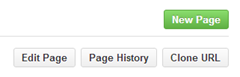
If you have not yet created a page, you will only see the green New Page button. Click it, give the page a title (for example, Home), add some placeholder content, and save. The Clone URL button will then appear.
Clicking Clone URL copies the wiki's Git URL to your clipboard. Then clone it with your preferred Git client:
git clone https://github.com/YOUR_USERNAME/YOUR_REPO.wiki.gitHow do you edit wiki content efficiently with a local editor?
GitHub wiki pages can be written in several markup languages. Markdown is the most practical choice, and there are good local editors for it.
VS Code (current recommendation)
VS Code is the most practical choice for local wiki editing today. Open the cloned wiki folder as a workspace, use the built-in Markdown preview (Ctrl+Shift+V), and install the Markdown Paste extension to get clipboard-to-file image pasting — the same capability described below for MarkPad.
MarkPad (historical note — Windows, 2013)
At the time this post was first written, MarkPad was an excellent Windows Markdown editor built as part of the Code52 open-source initiative. Its headline feature was clipboard image handling: take a screenshot with a tool like Shotty or Cropper, paste it into the document (Ctrl+V), and MarkPad would generate an appropriately named image file and insert a relative Markdown link automatically.
MarkPad is no longer actively maintained (the repository has been archived), but the workflow it established — paste from clipboard, get a committed image file — remains the right approach for wiki images. VS Code extensions replicate this today.
What is the correct image path format for GitHub wikis?
This is the one non-obvious syntax rule. When you reference an image using a path relative to the wiki page, you must use \ as the path separator, not /.
For example, if you have committed an image into a subfolder within the wiki repository:
Using a forward slash will cause the image to render correctly in some editors but fail on GitHub's wiki renderer. Use the backslash.
How do you push wiki changes back to GitHub?
Once you have finished editing, commit your changes and make sure to stage any new image files that were generated alongside your Markdown:
git add .
git commit -m "Update wiki content and add screenshots"
git push origin master
Your changes appear on the wiki immediately. There is no build step or approval queue — what you push is what readers see.

Solution Architect with 30 years in cloud infrastructure, security, identity, and .NET engineering.